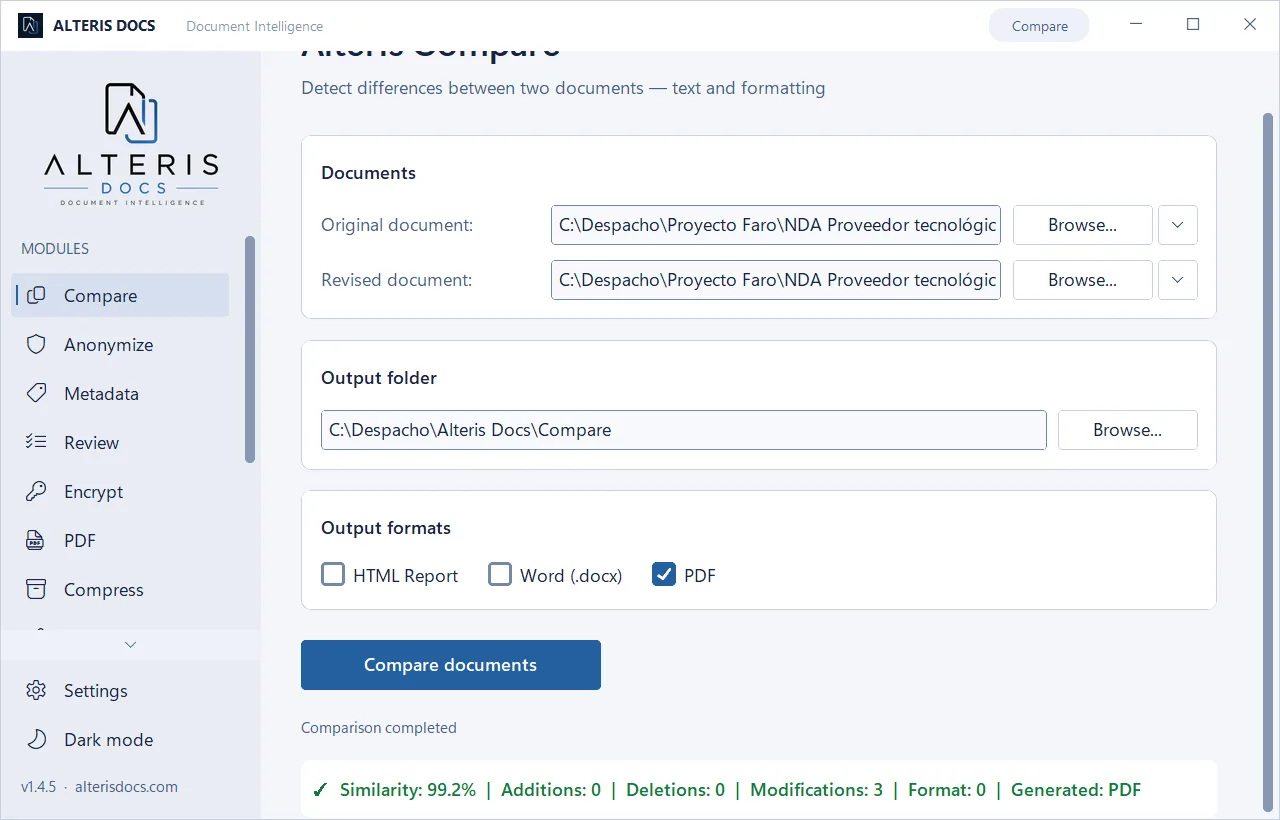
Finds the differences between two versions of a document (PDF, Word, PowerPoint or Excel, even across formats) and produces a report with every change marked.
Open the Compare module from the side menu.
Under Original document click Browse... and choose the first version; you can also drag the file onto the window.
Under Revised document choose the version you want to compare it with.
Check the Output folder where the report will be saved.
Tick one or more Output formats: HTML Report, Word (.docx) or PDF.
Click Compare documents. You will see the similarity percentage and the number of additions, deletions and changes, and the report will be in the output folder.
02
Anonymize
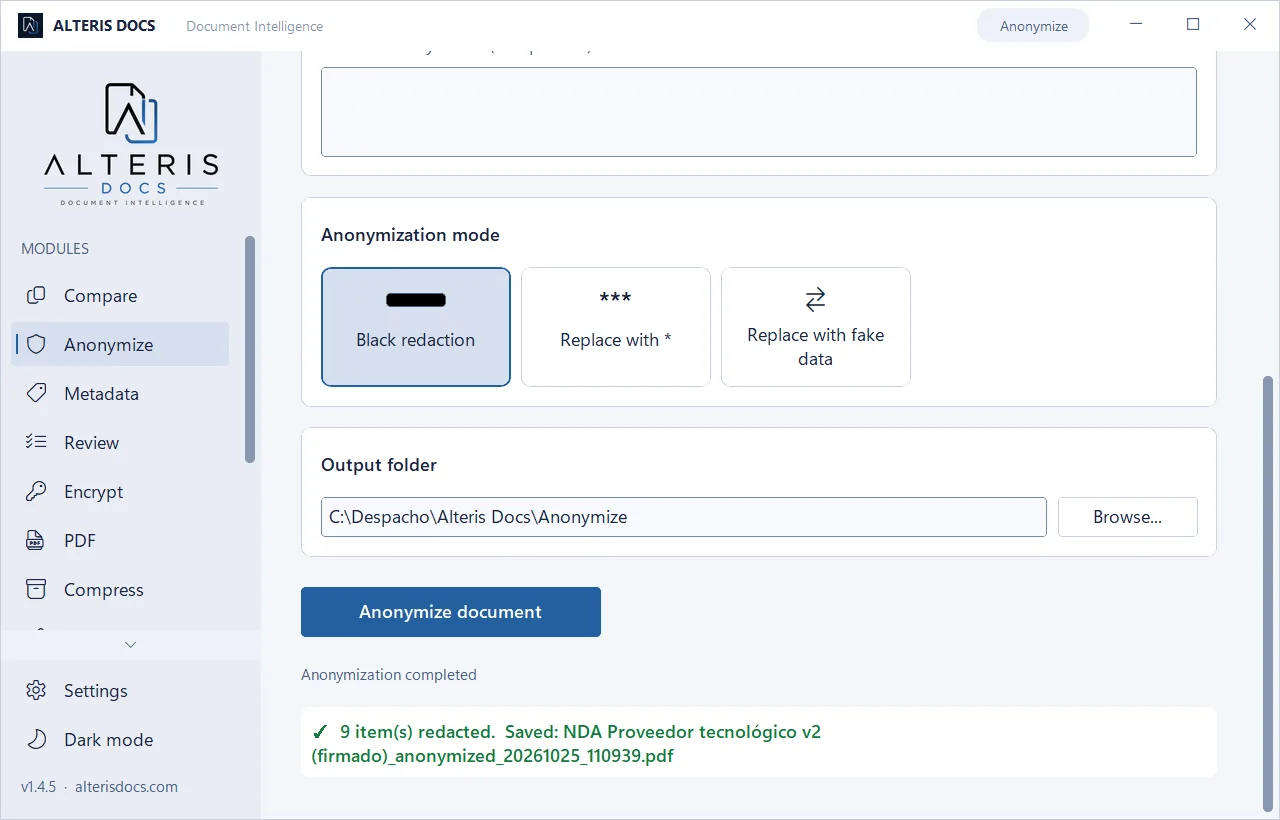
Finds and hides personal data in PDF and Word documents: emails, phone numbers, Spanish ID numbers (DNI, NIE), passports, IBANs, social security numbers, dates, names and companies.
Open the Anonymize module and choose the Document to anonymize.
Under Data to redact, tick the types of data you want to hide.
If needed, add Additional keywords (one per line): for example, a client's name, a reference or an address.
Choose the Anonymization mode: Black redaction, Replace with * or Replace with fake data (the document stays readable without showing the real data).
Check the Output folder and click Anonymize document. An anonymized copy is saved; the original is not changed.
●Always check the result before sending it: a name without a title (Mr., Mrs.…) or a date written out in words may need to be added as a keyword.
03
Metadata
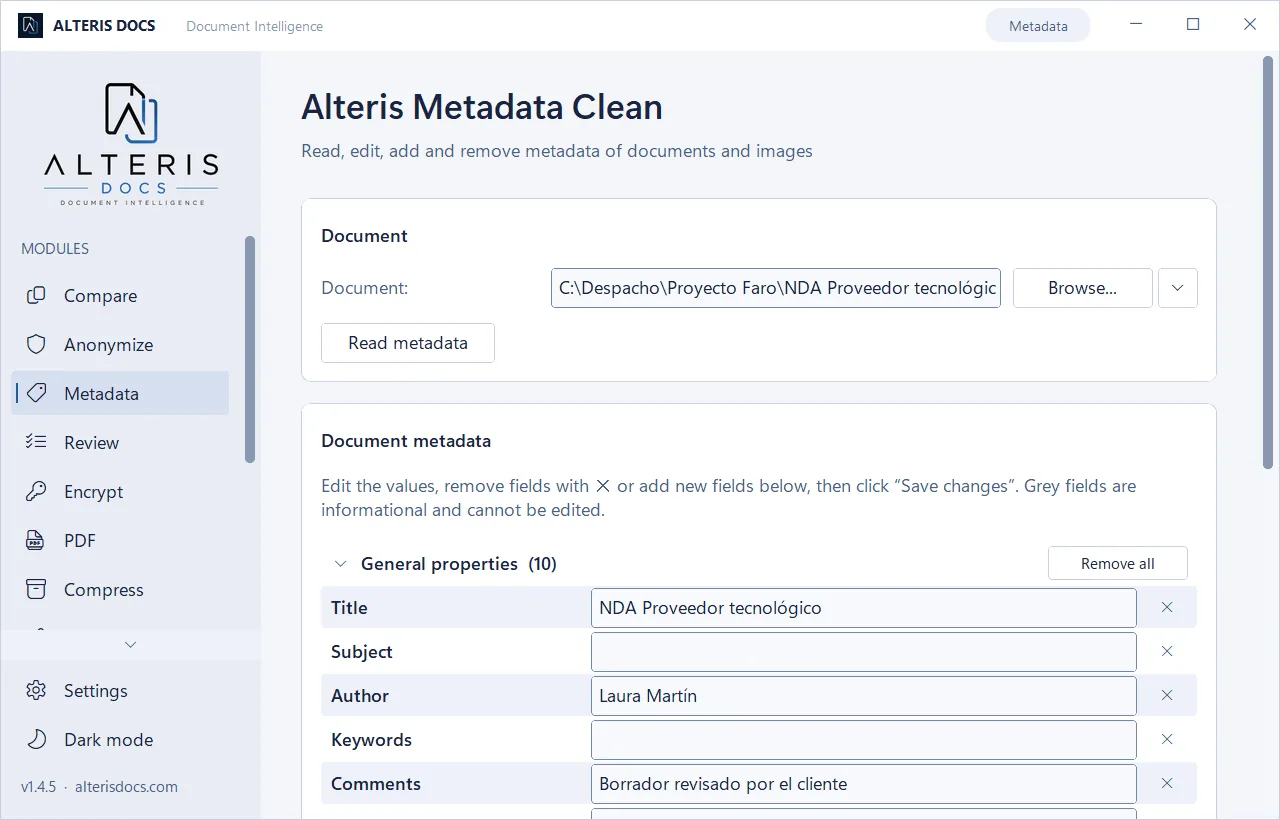
View, edit and remove the metadata hidden in documents and images: author, company, dates, comments, reviewers, camera data and GPS location.
Open the Metadata module, choose the Document and click Read metadata.
Under Document metadata you will see the fields grouped by type. Change any value, remove a field with ✕ (or a whole group with Remove all) or create one with Add field.
Click Save changes. With Keep a backup copy (.bak) of the original a copy of the file as it was is kept.
To remove all metadata in one go, use Clean metadata: a clean copy is saved in the output folder.
In Word files, the Reviewers and commenters section lets you click Detect reviewers, rename them (or leave the name blank to remove them) and click Apply changes.
●If the PDF is digitally signed, the app warns you: changing it would invalidate the signature.
04
Review
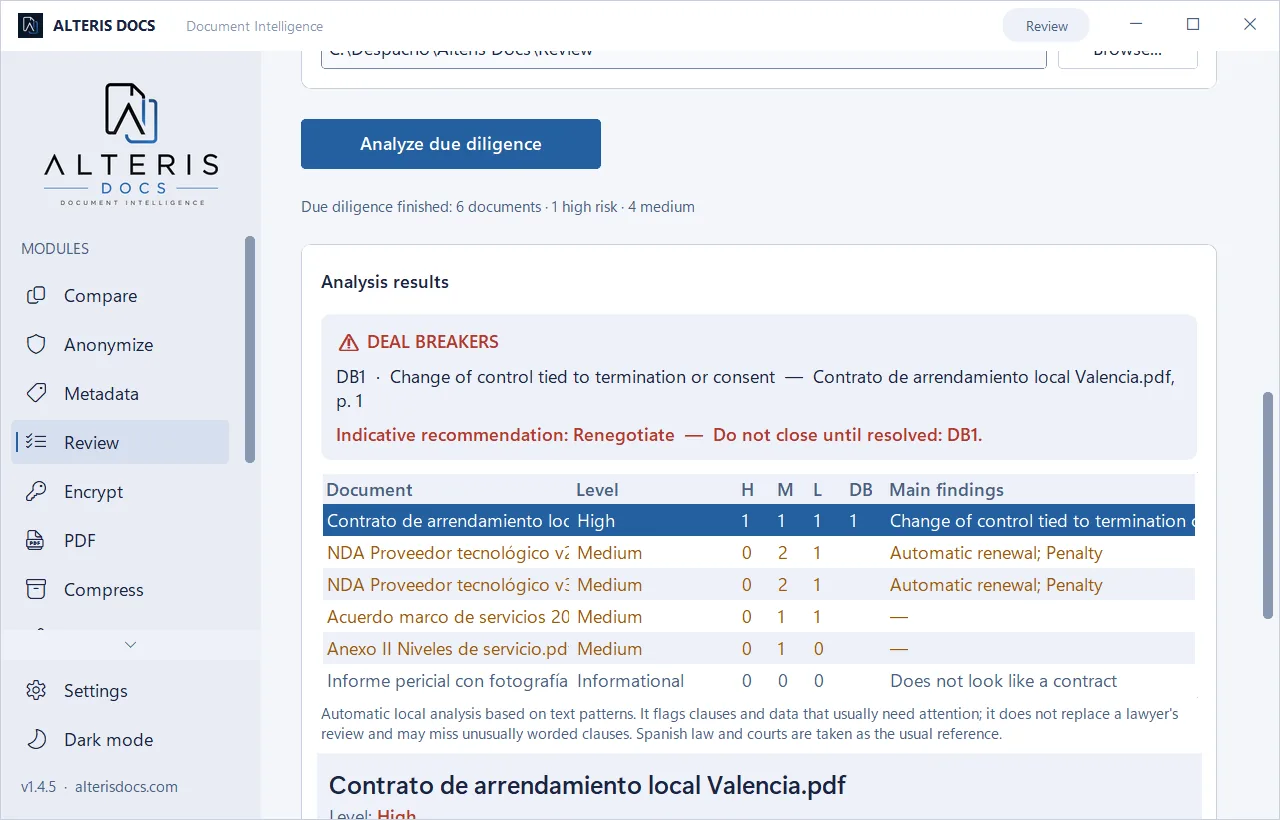
Analyzes contracts on your computer, with no internet connection or external artificial intelligence: key data, risk clauses, expiry dates and due diligence reports.
Open the Review module and choose the Analysis mode: General Analysis, Contract Extraction, Contract batch or Due diligence.
With General Analysis or Contract Extraction, choose the Document to analyze and click Analyze document. You will see parties, dates, terms, amounts, penalties and risk clauses; export it with Export PDF Report.
With Contract batch, add the contracts with Add files or Add folder and click Analyze batch. Each row is a contract, with expiry dates in amber (90 days or less) or red (expired). You can use Export to Excel or Export to Word.
With Due diligence, fill in the Deal sheet, add the data room documents and click Analyze due diligence. Select a row to see that document's findings and export the report in PDF or Word.
●It is an automatic analysis based on text patterns: it flags clauses and data for you to review, but it does not replace a lawyer's review.
05
Encrypt
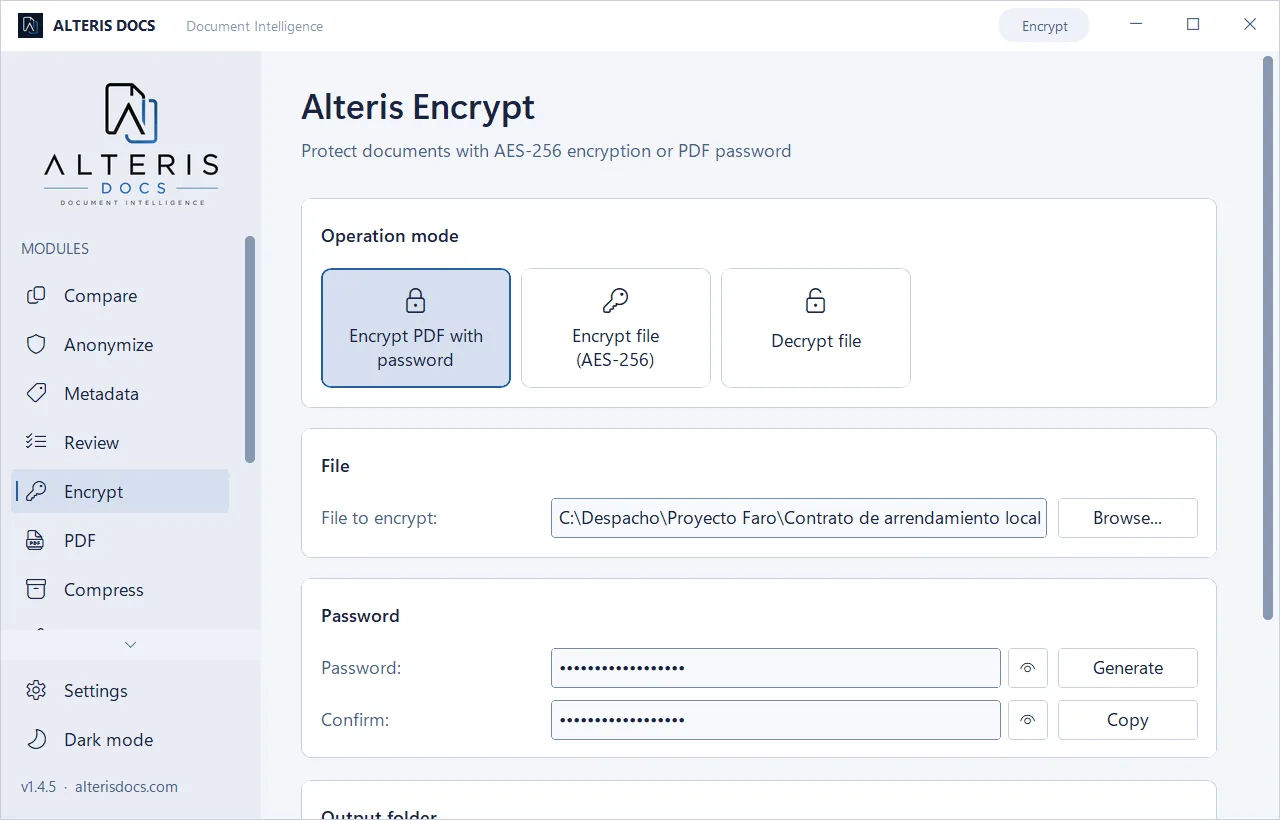
Protect a PDF with an open password or encrypt any file with AES-256, and decrypt it whenever you need.
Open the Encrypt module and choose the Operation mode: Encrypt PDF with password, Encrypt file (AES-256) or Decrypt file.
Choose the File to encrypt.
Type the Password twice, or click Generate to create a strong one and Copy to put it on the clipboard.
Check the Output folder and click Encrypt.
●The password is not stored anywhere: if you lose it, the file cannot be recovered. Send it through a different channel from the file.
06
PDF Tools
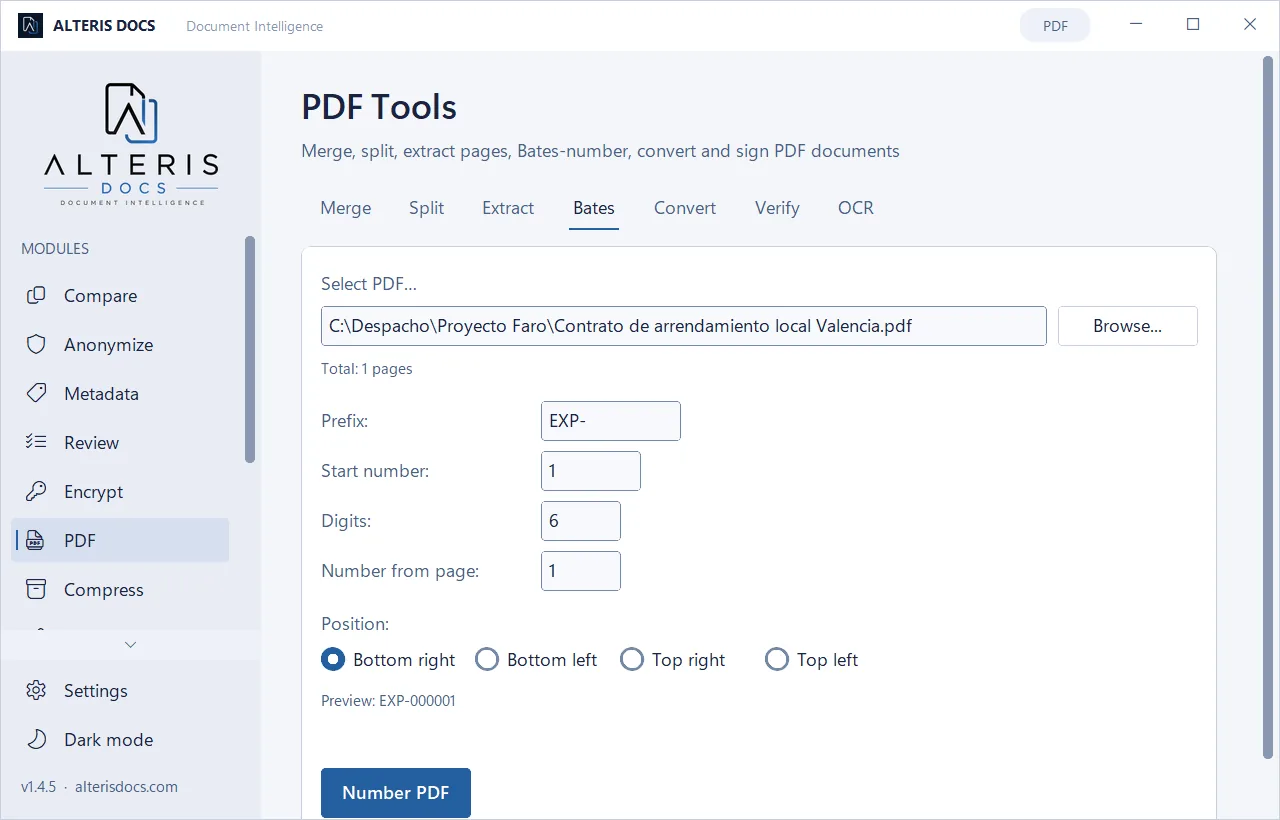
Merge, split, extract pages, Bates-number, convert, verify signatures and run OCR, without uploading your PDFs to any website.
Open the PDF module and choose the tab: Merge, Split, Extract, Bates, Convert, Verify or OCR.
In Merge, add the PDFs with Add files…, order them with Up / Down and click Merge PDFs.
In Bates, choose the PDF, the Prefix, the Start number and the Position. The preview shows what the stamp will look like; click Number PDF.
The other tabs follow the same pattern: choose the file, adjust the options and click the tab's button.
●Converting Word, Excel or PowerPoint to PDF uses Microsoft Office or LibreOffice installed on the computer; OCR requires Tesseract-OCR to be installed.
07
Compress
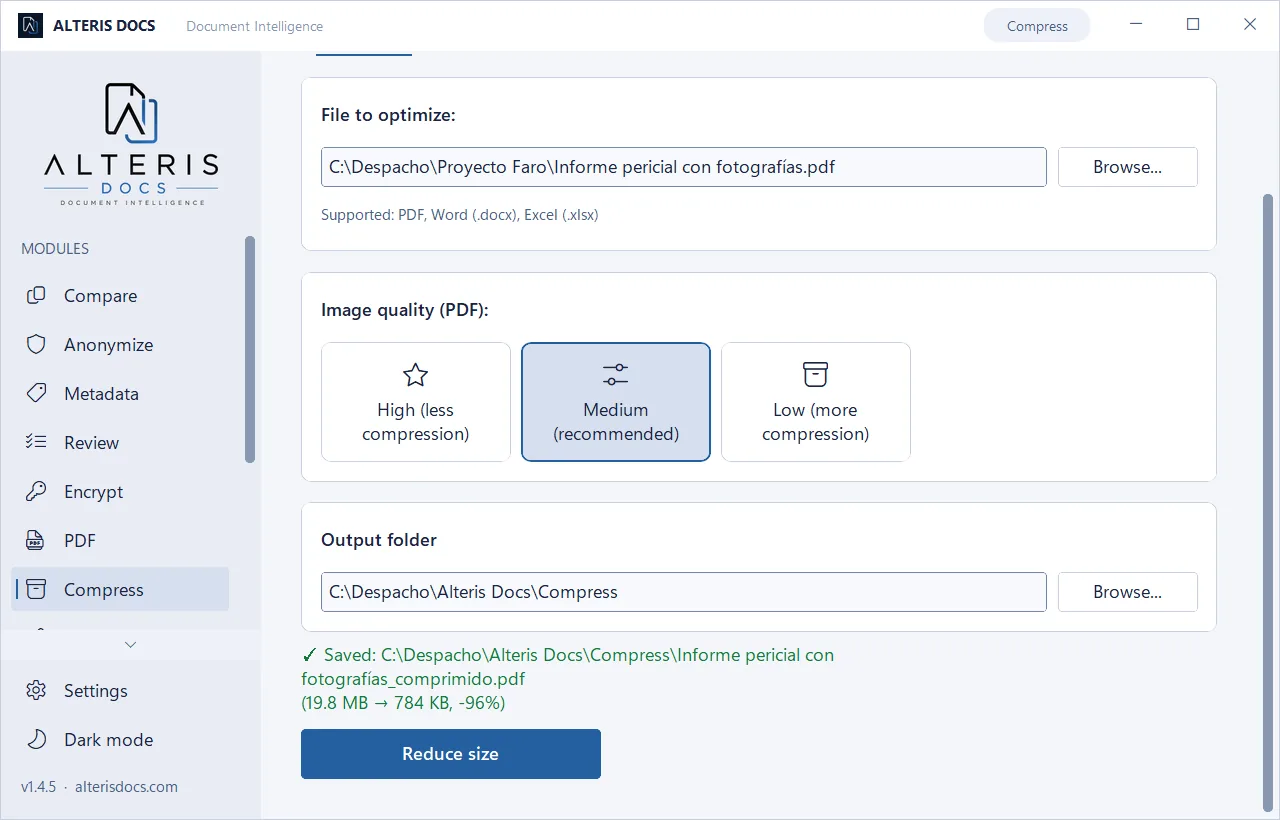
Shrink PDF, Word and Excel files to send them by email, create ZIP files and extract ZIP, RAR, 7z, TAR, GZ and BZ2.
Open the Compress module and choose the Reduce size, Compress to ZIP or Decompress tab.
In Reduce size, choose the File to optimize (PDF, Word .docx or Excel .xlsx).
Choose the Image quality (PDF): High (less compression), Medium (recommended) or Low (more compression).
Check the Output folder and click Reduce size. You will see the size before and after.
08
Digital Signature
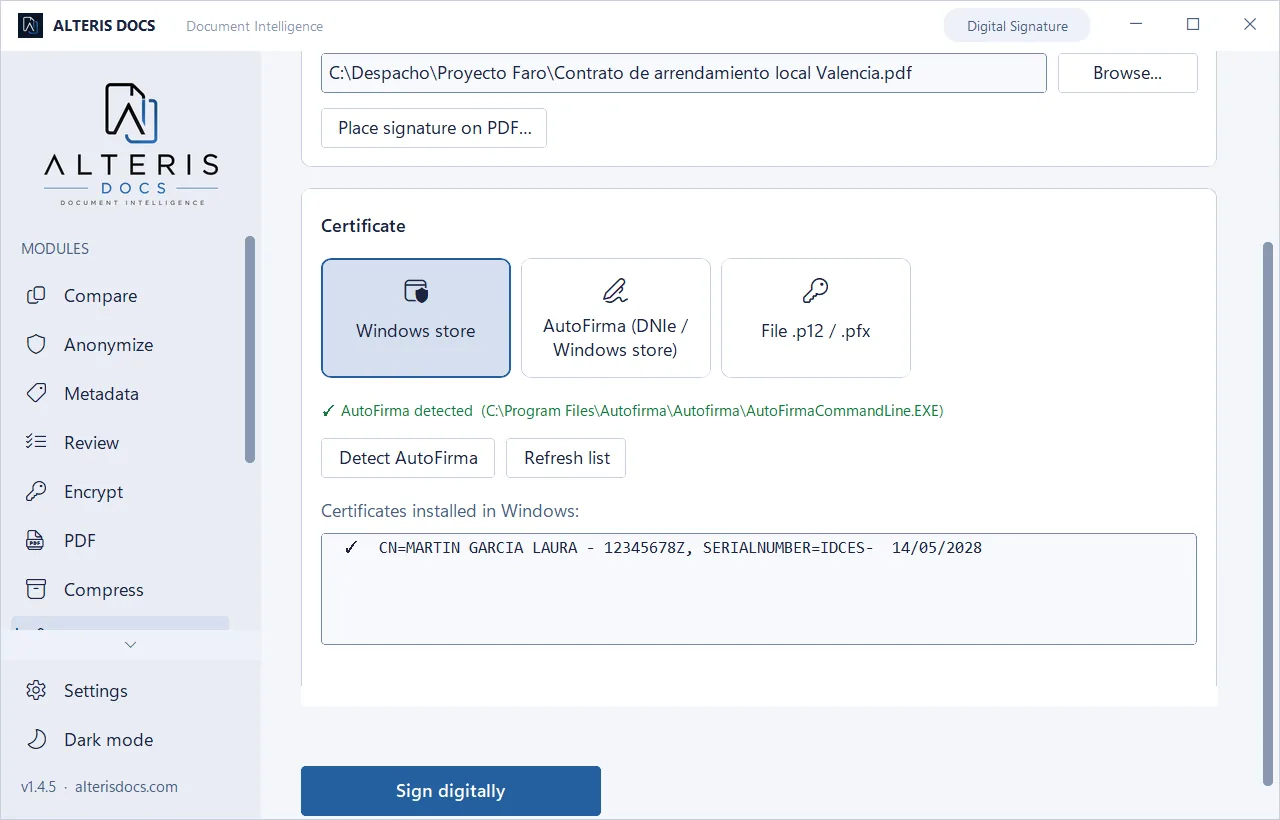
Sign PDFs with a digital certificate (PAdES, valid under eIDAS), one at a time or in batches, and timestamp documents.
Open the Digital Signature module and choose the Individual sign, Batch sign or Timestamp tab.
Under Document, click Browse... and choose the PDF.
Under Certificate, choose the source: Windows store, AutoFirma (DNIe / Windows store) or File .p12 / .pfx. If your certificate does not appear, click Refresh list.
Select the certificate from the list of Certificates installed in Windows.
If you want the signature to be visible on the document, click Place signature on PDF… and draw the box on the page.
Click Sign digitally.
To sign several PDFs, use Batch sign: add the files with Add files or Add folder, choose the certificate and click Start batch.
09
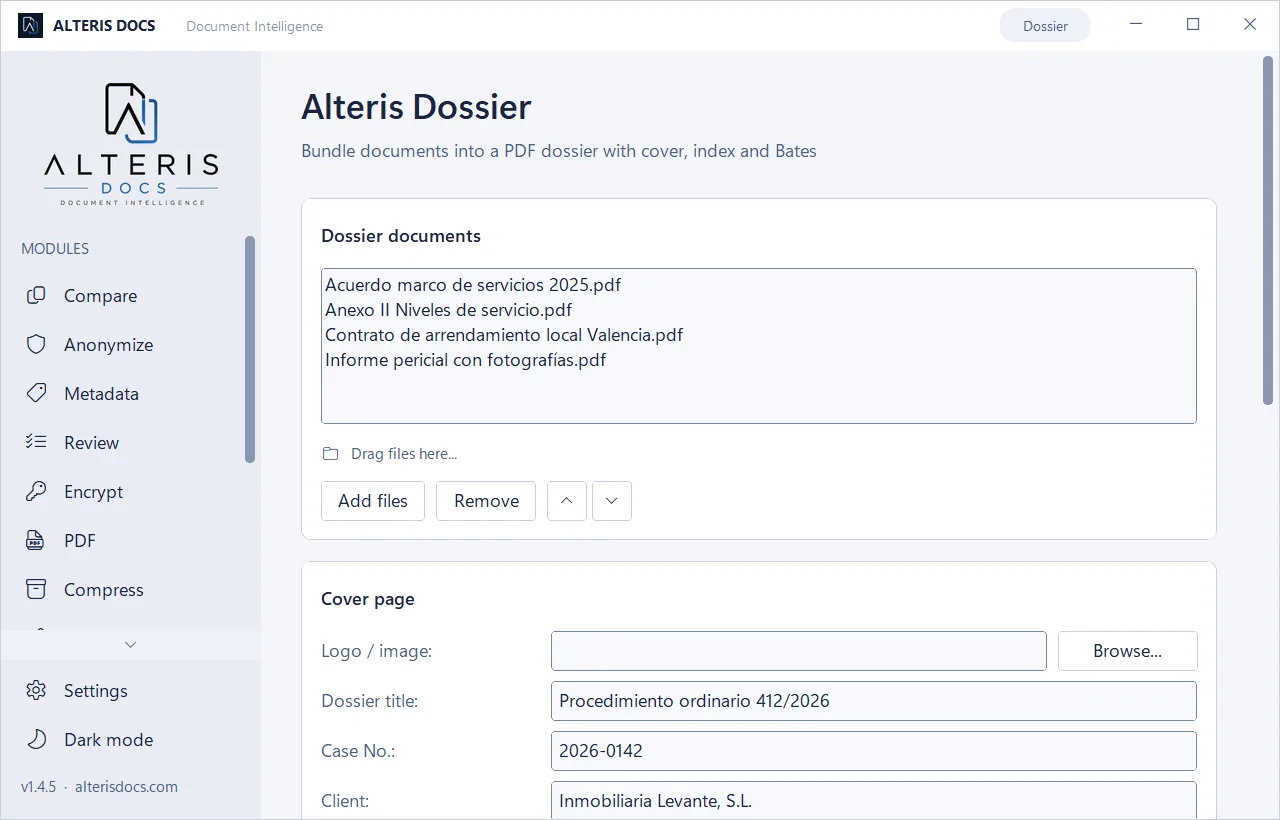
Dossier
Combine PDF, Word, Excel and PowerPoint files into a single PDF dossier with a cover page, index and Bates numbering.
Open the Dossier module and add the documents with Add files (or drag them onto the list). Reorder them with the arrows or remove them with Remove.
Fill in the Cover page: Dossier title, Case No., Client, Logo / image and Date.
Under Options, tick Include cover page, Include index and, if you need it, Bates numbering with its prefix and position.
Set the Output folder and the File name and click Generate dossier.
10
Search
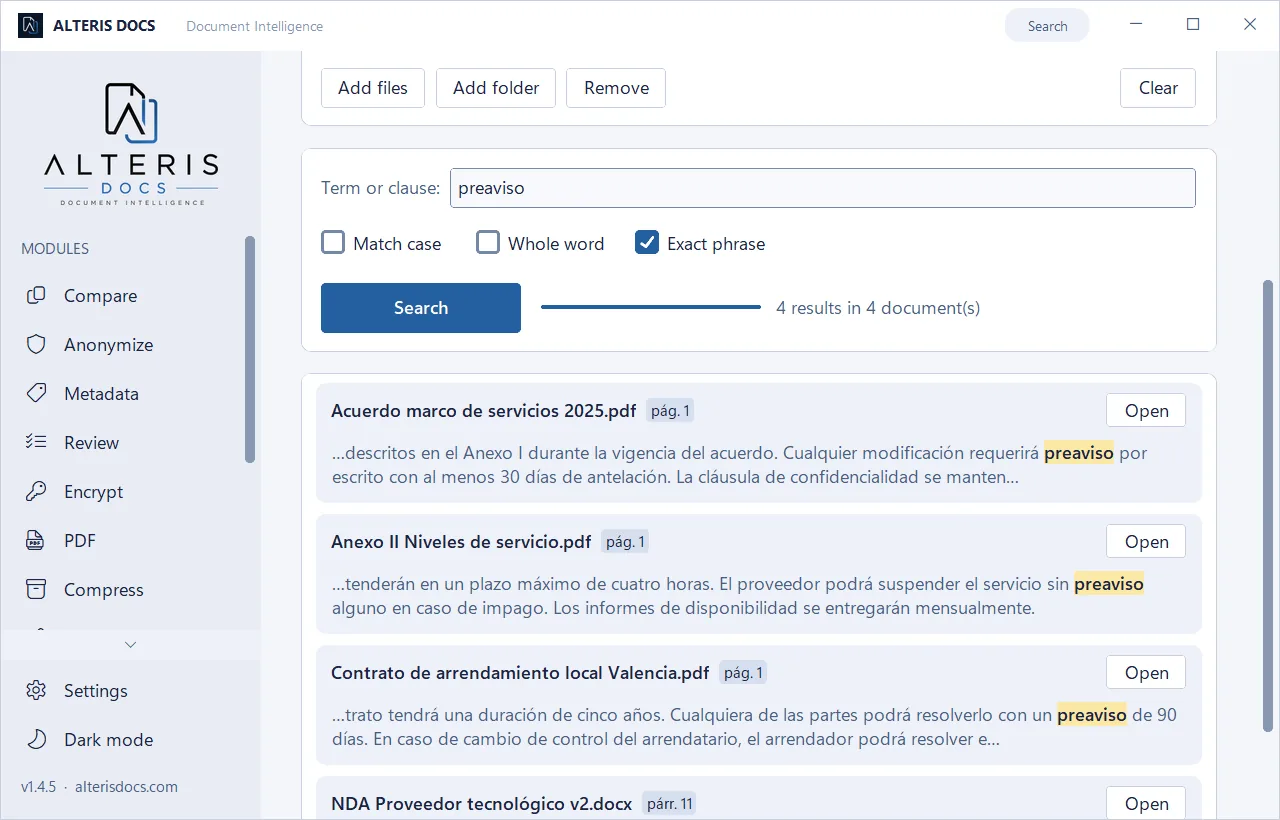
Search for a term or clause in many PDF and Word files at once and see each hit in context.
Open the Search module and add the documents with Add files or Add folder (subfolders included).
Type the Term or clause.
Adjust the options if needed: Match case, Whole word or Exact phrase.
Click Search. Each result shows the document, the page or paragraph and the surrounding text; Open opens the document.
Screenshots taken with fictitious sample documents.
 Alteris Docs